
For iPhone and iPad
Make sticker files from photos
A sticker needs a clean cutout. Vectorize Image removes the background and gives you a ready file.
Scan with your iPhone or iPad camera to open the App Store.


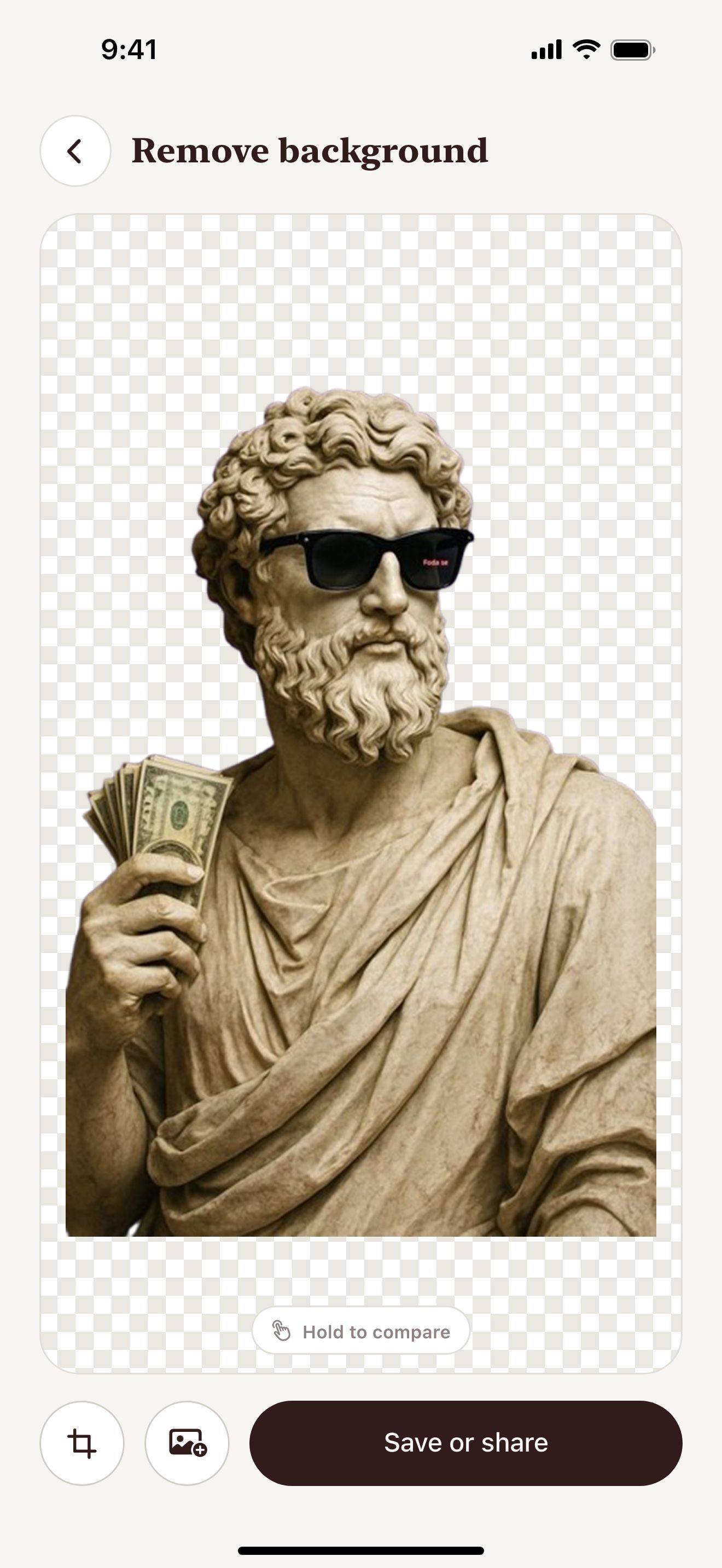
Step by step
How to make a sticker file on iPhone and iPad
- Open Vectorize Image and tap Remove background.
- Pick the photo.
- Wait a few seconds. AI cuts out the subject.
- Save the PNG for Print Then Cut stickers.
- For a vinyl decal, send the cutout to Trace and export SVG.
What you get
Clean cutout
AI separates the subject from the background.
PNG for printing
The transparent PNG works with Print Then Cut.
SVG for vinyl
Trace turns the cutout into a one-color SVG for vinyl decals.
Color vector
Image to vector turns the cutout into a color SVG for any size.
Tips for a clean result
- Pick a photo where the subject has a clear outline.
- Add an offset border in your cutting app for a classic sticker look.
- Use a 4× PNG from Image to vector for large stickers.
Questions and answers
Which file do I need for Print Then Cut?
Use a PNG with a transparent background. Remove background gives you that file.
Which file do I need for vinyl?
Use a one-color SVG. Trace makes it.
Can I sell the stickers?
Use only images that you own or have the right to use.
Related pages
The tool for this task

For iPhone and iPad
Make your first sticker
Scan with your iPhone or iPad camera to open the App Store.