
For iPhone and iPad
Make the background transparent
Remove background cuts out the subject with AI. The app saves a PNG with a transparent background.
Scan with your iPhone or iPad camera to open the App Store.


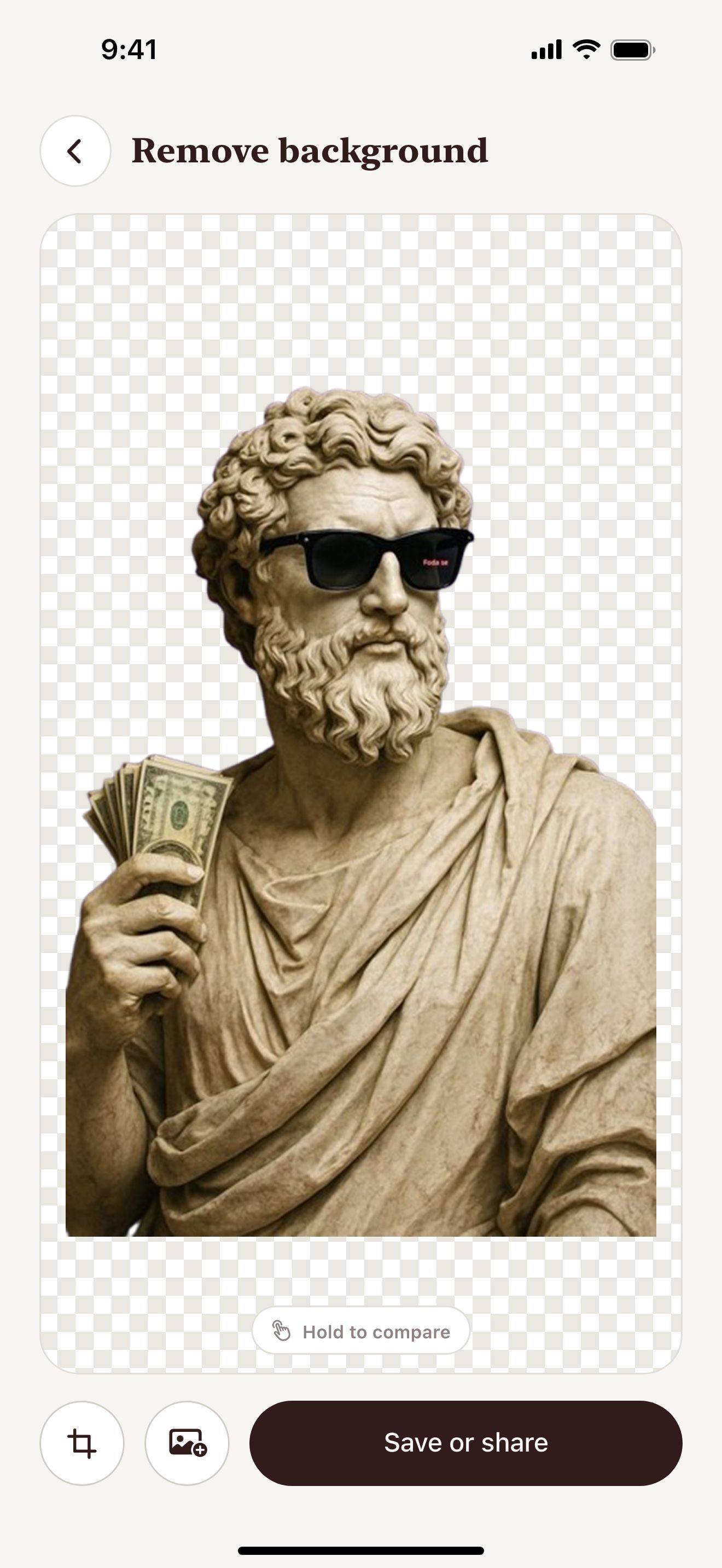
Step by step
How to make a transparent PNG on iPhone and iPad
- Open Vectorize Image and tap Remove background.
- Pick the photo.
- Wait a few seconds. AI cuts out the subject.
- Tap Save or share.
- Save the PNG to Files or Photos.
What you get
Real transparency
The PNG keeps the transparent areas. Other apps show the subject without a background.
Any subject
The tool works with people, products, pets and objects.
Next step: vector
Send the cutout to Image to vector or Trace in one tap.
Drag and drop
On iPad, drag the cutout straight into Keynote, Notes or another app.
Tips for a clean result
- Use a photo where the subject stands out from the background.
- Send the PNG as a file in messengers. Some messengers replace transparency with white.
Questions and answers
Why does my PNG show a white background?
Some apps and messengers replace transparency with white. Send the PNG as a file to keep the transparency.
Can I get a transparent SVG?
Yes. Send the cutout to Trace. Trace saves an SVG without a background.
Related pages
The tool for this task

For iPhone and iPad
Make your first transparent PNG
Scan with your iPhone or iPad camera to open the App Store.