
For iPhone and iPad
Make a stencil from a photo
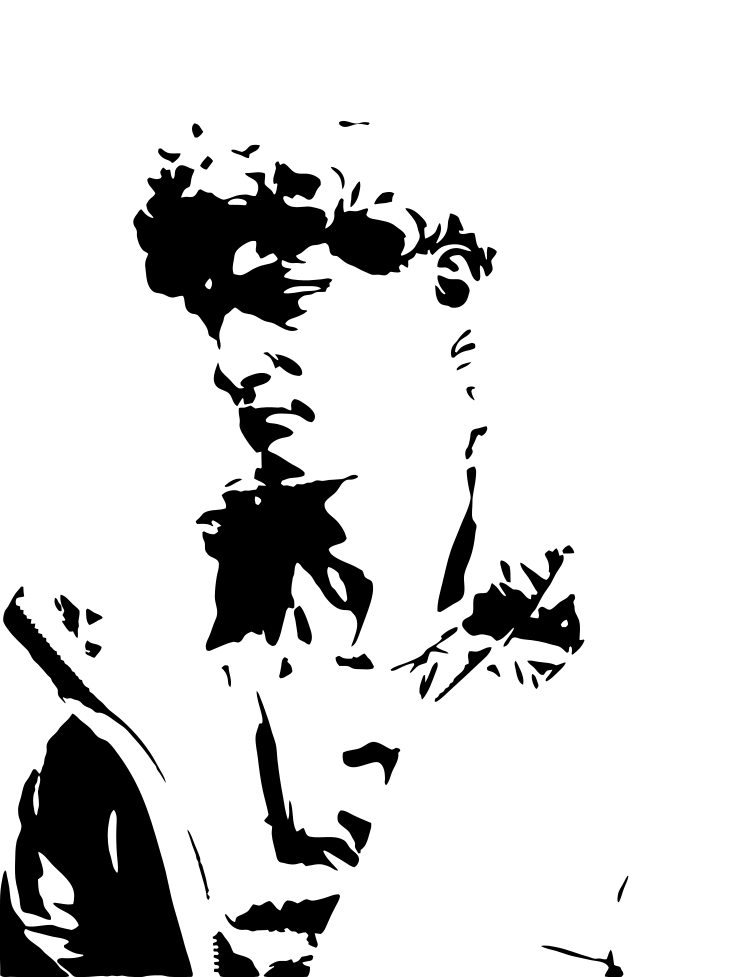
A stencil needs bold shapes in one color. Trace turns any photo into exactly that.
Scan with your iPhone or iPad camera to open the App Store.

Step by step
How to make a stencil on iPhone and iPad
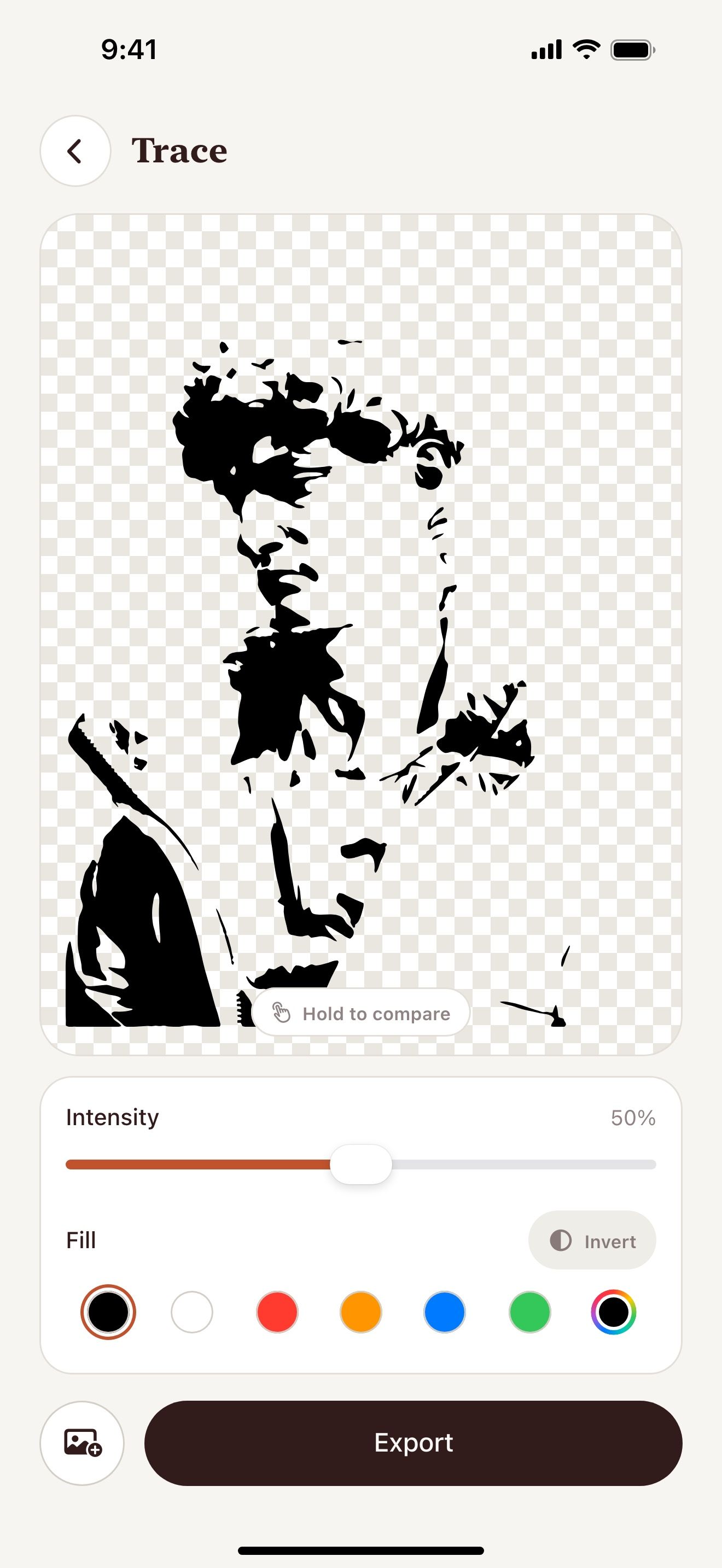
- Open Vectorize Image and tap Trace.
- Pick a photo with strong contrast.
- Lower the intensity for bold shapes.
- Tap Invert if you need the opposite areas filled.
- Export a PNG to print or an SVG to cut.
What you get
Bold shapes
Trace drops the small details. The stencil stays easy to cut.
Free and offline
Trace runs on your device with no limit.
Print or cut
Print the PNG and cut it by hand. Or send the SVG to a cutting machine.
Any size
The SVG scales to a wall stencil without blur.
Tips for a clean result
- Use a photo with a plain background.
- Lower the intensity for spray paint stencils.
- Check the closed areas inside letters. Add bridges in an editor so they do not fall out.
Questions and answers
What material can I cut?
Cut the SVG from vinyl, mylar, cardstock or wood with your machine.
Can I make a face stencil?
Yes. Use a portrait with side light. Lower the intensity for a clean result.
Is it free?
Yes. Trace is free with no limit.
Related pages
The tool for this task

For iPhone and iPad
Make your first stencil
Scan with your iPhone or iPad camera to open the App Store.