
For iPhone and iPad
Convert JPG to SVG
Vectorize Image turns a JPG photo into an SVG made of flat color shapes. The result looks like a poster.
Scan with your iPhone or iPad camera to open the App Store.
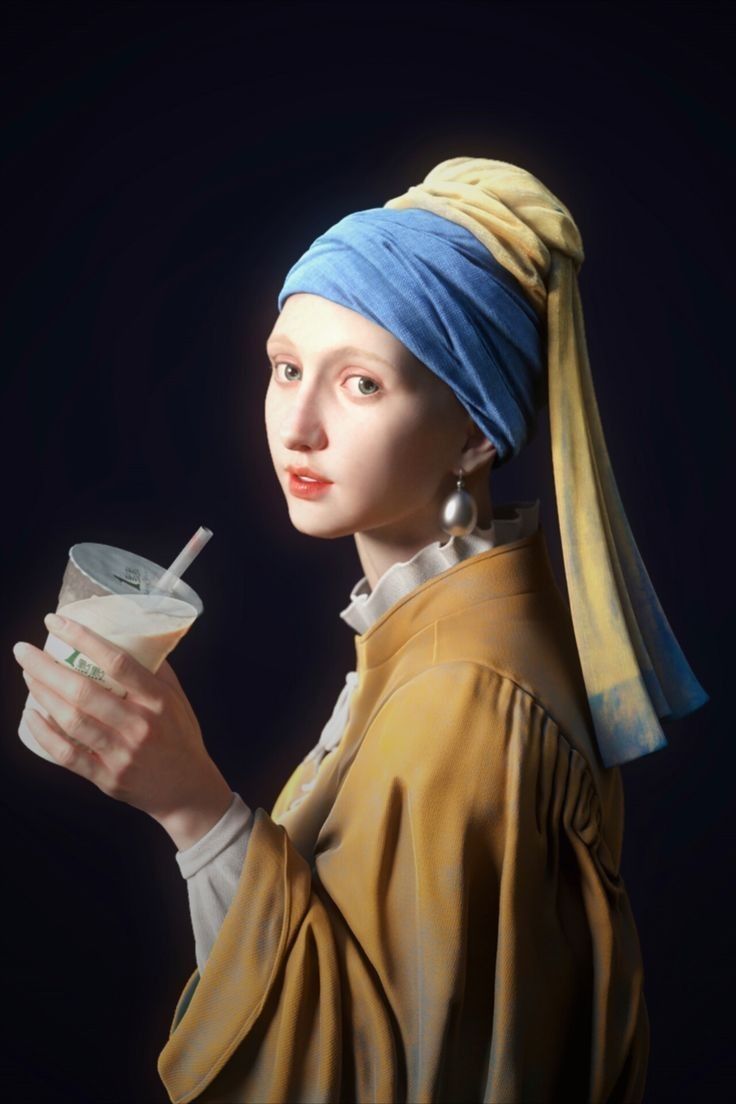
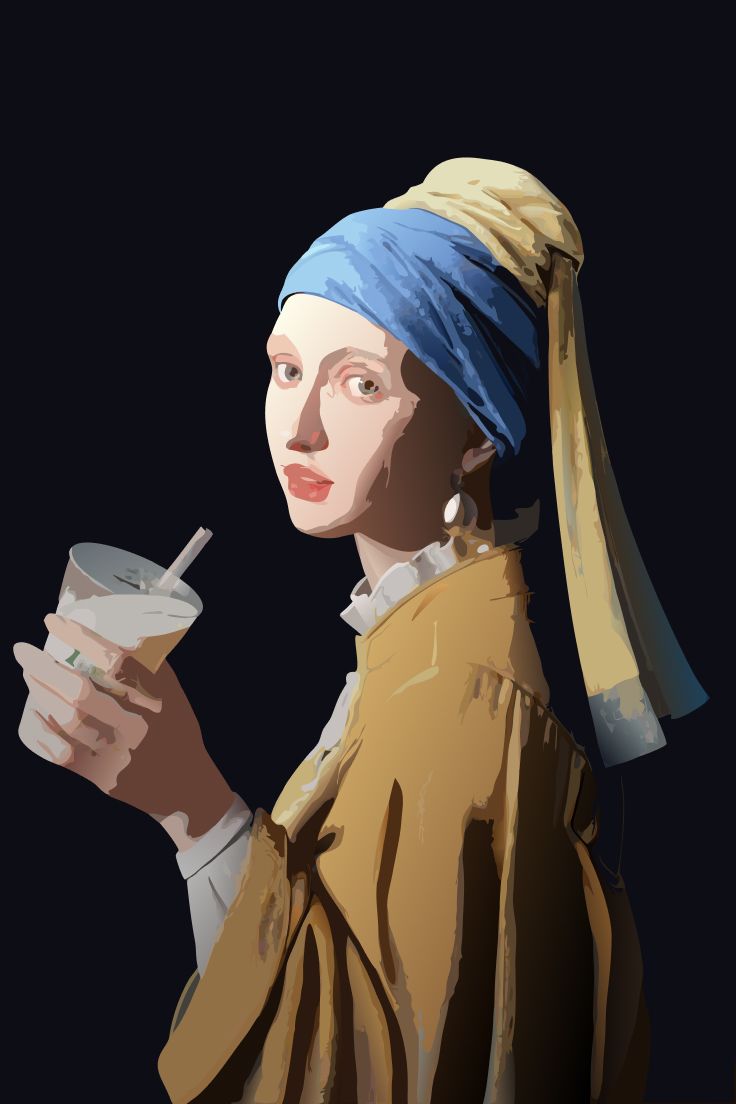
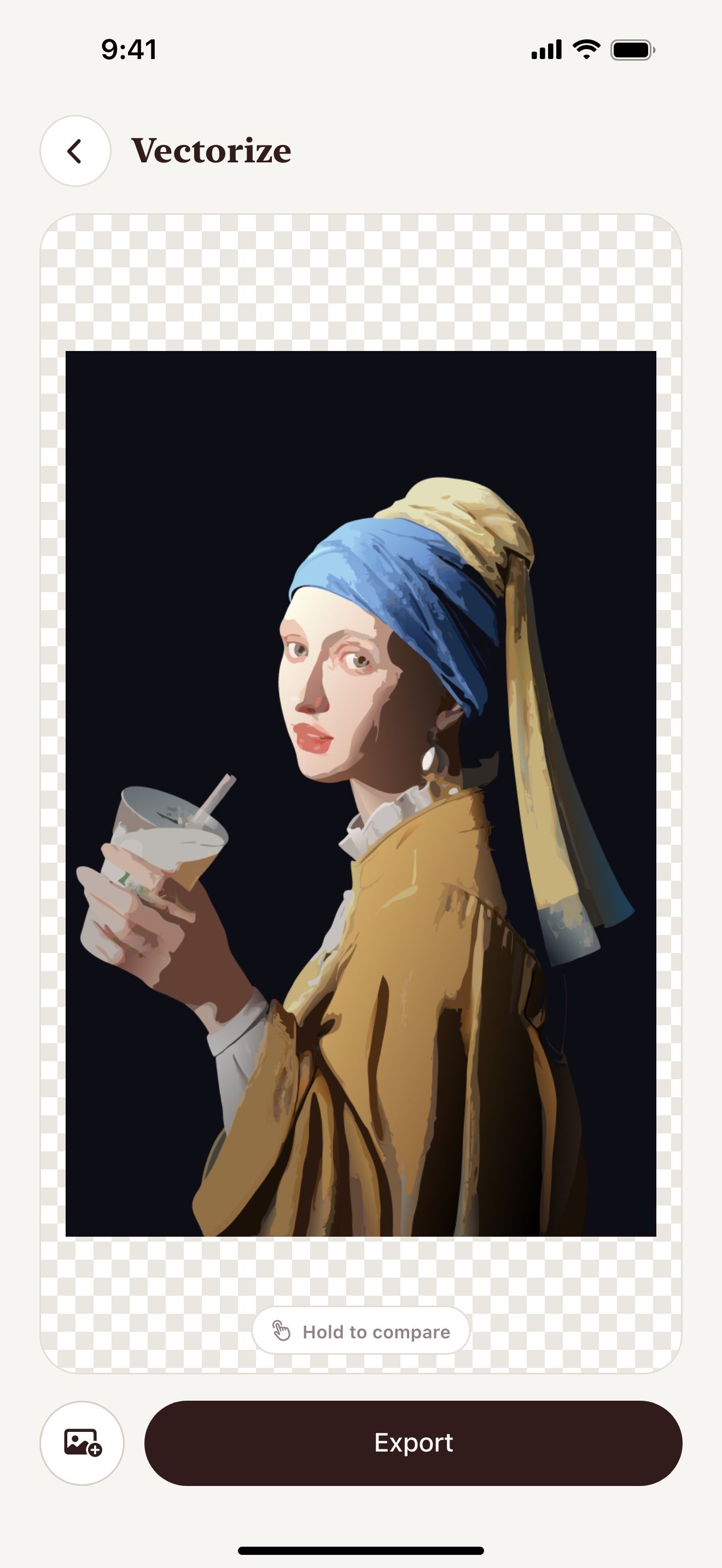
Step by step
How to convert JPG to SVG on iPhone and iPad
- Open Vectorize Image and tap Image to vector.
- Pick the JPG from your Photos library.
- Wait a few seconds. AI redraws the photo.
- Touch and hold the eye button to compare the result with the original.
- Tap Export and choose SVG.
- Save the SVG to Files or share it.
What you get
Poster style
AI groups similar colors into flat shapes. Faces and objects stay easy to recognize.
No JPG noise
JPG compression leaves noise around edges. The SVG has clean edges instead.
Any size
Print the SVG on a mug or a poster. It stays sharp.
PNG too
Export the result as PNG at 1×, 2×, 3× or 4×.
Tips for a clean result
- Pick a photo with good light and a clear subject.
- Remove the background first if you need only the subject.
- Close-up photos give more detail than wide shots.
Questions and answers
Will the SVG look like the photo?
The SVG keeps the shapes and the main colors. Fine textures turn into flat areas.
Can I convert a JPEG file?
Yes. JPG and JPEG are the same format.
How large can the JPG be?
The app accepts large photos. It reduces very large images before processing.
Related pages
The tool for this task

For iPhone and iPad
Convert your JPG to SVG
Scan with your iPhone or iPad camera to open the App Store.