
For iPhone and iPad
Turn a logo into a vector
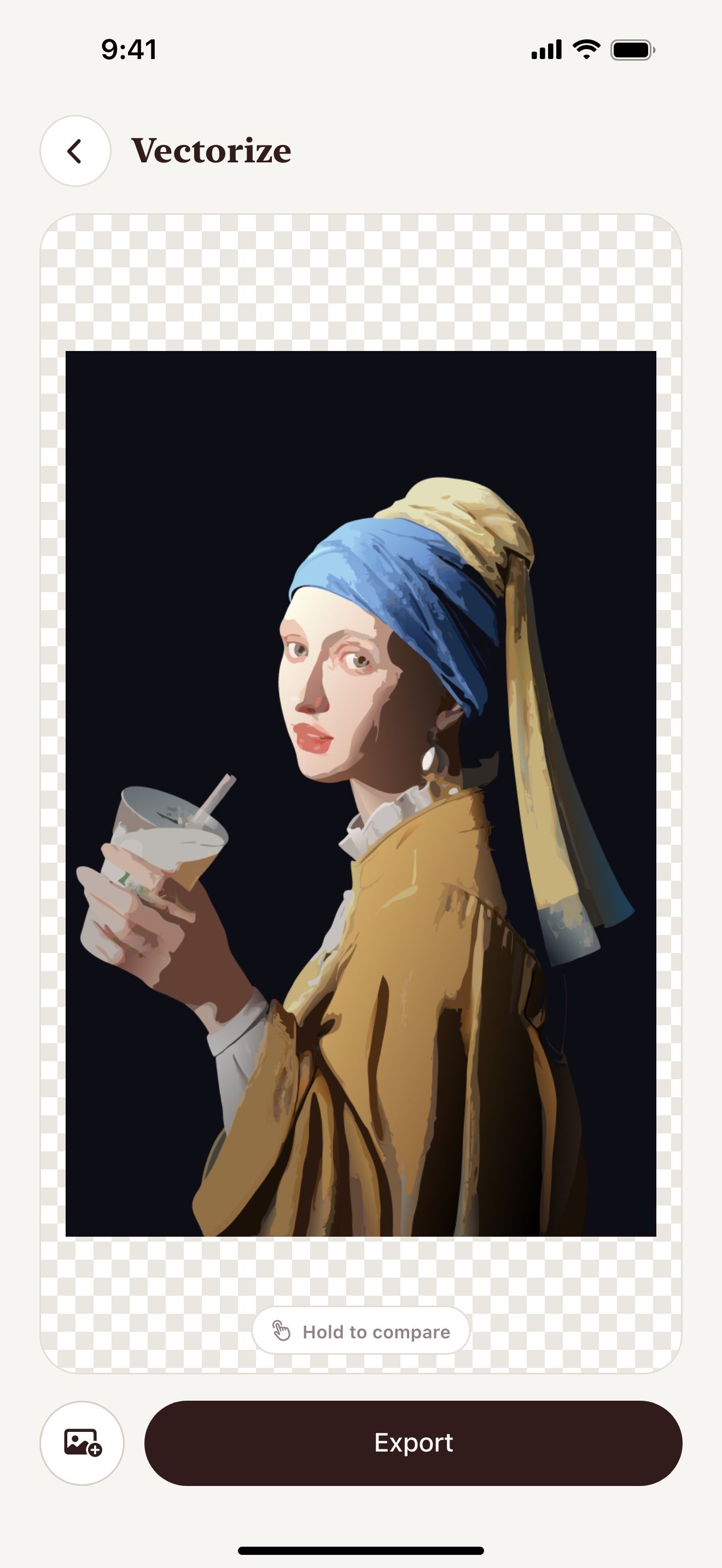
Lost the original logo file? Take a screenshot or a photo of the logo. Vectorize Image redraws it as an SVG.
Scan with your iPhone or iPad camera to open the App Store.

Step by step
How to vectorize a logo on iPhone and iPad
- Take a screenshot of the logo or a photo of a print.
- Open Vectorize Image and tap Image to vector.
- Pick the image.
- Wait a few seconds. AI redraws the logo.
- Tap Export and choose SVG.
- Send the SVG to your designer or printer.
What you get
Flat shapes
Logos have few colors. AI turns each color into clean shapes.
Print size
The SVG stays sharp on a business card and on a banner.
Edit later
Open the SVG in Illustrator, Figma or Inkscape to fix details.
PNG for the web
Export PNG at 1× to 4× for websites and social media.
Tips for a clean result
- Crop the screenshot to the logo before you start.
- Use the largest image of the logo you can find.
- Check small text in the result. Very small letters can lose detail.
Questions and answers
Will the SVG be perfect?
AI gives a clean base. Small text and thin lines may need a fix in an editor.
Can I vectorize any logo?
Vectorize only logos that you own or have the right to use.
Which format do printers want?
Most printers accept SVG or PDF. Ask your printer before you send the file.
Related pages
The tool for this task


For iPhone and iPad
Get a sharp vector logo
Scan with your iPhone or iPad camera to open the App Store.