
For iPhone and iPad
Print files for t-shirts
Printers ask for a vector or a large PNG with a transparent background. Vectorize Image gives you both.
Scan with your iPhone or iPad camera to open the App Store.

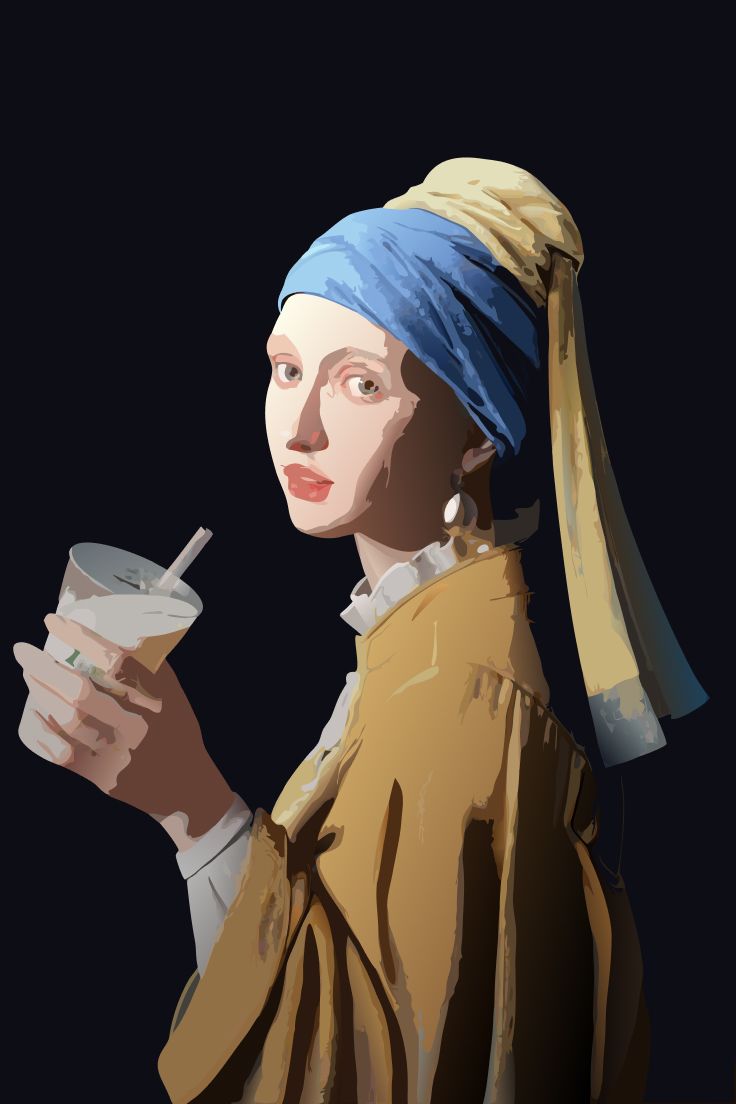
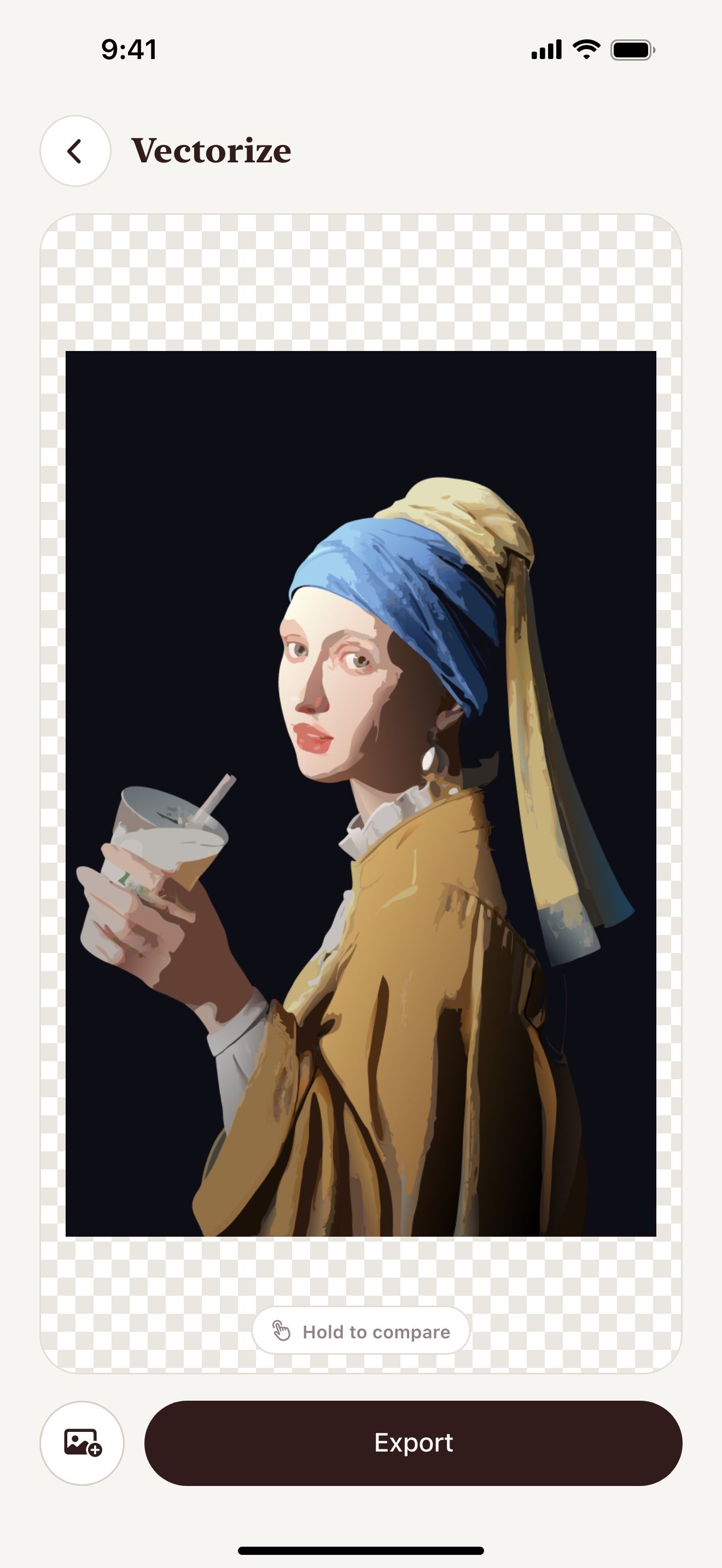
Step by step
How to make a t-shirt print file on iPhone and iPad
- Open Vectorize Image and tap Remove background.
- Pick the photo and wait for the cutout.
- Send the cutout to Image to vector.
- Tap Export.
- Choose SVG for screen printing or a 4× PNG for DTF and DTG printing.
- Send the file to your printer.
What you get
Vector for screen printing
Screen printers separate colors from a vector. Flat colors make that easy.
Large PNG for DTF and DTG
A 4096 px PNG prints about 34 cm (13.6 in) wide at 300 DPI.
Transparent background
The cutout prints without a box around it.
One color for vinyl
Trace makes a one-color SVG for heat transfer vinyl.
Tips for a clean result
- Ask your printer which format they prefer.
- Use fewer colors to lower the cost of screen printing.
- Check the design on a dark shirt and on a light shirt.
Questions and answers
What resolution do printers need?
Most printers ask for 300 DPI at print size. A 4096 px PNG covers about 34 cm (13.6 in) at 300 DPI.
Can I make a heat transfer vinyl design?
Yes. Use Trace and export SVG. Then cut it on your machine.
Do I need the rights to the photo?
Yes. Print only images that you own or have the right to use.
Related pages
The tool for this task

For iPhone and iPad
Make your first t-shirt design
Scan with your iPhone or iPad camera to open the App Store.