
For iPhone and iPad
Turn a monogram into an SVG
Found a monogram you like as an image? Vectorize Image turns it into an SVG for cutting and printing.
Scan with your iPhone or iPad camera to open the App Store.
Step by step
How to turn a monogram into SVG on iPhone and iPad
- Save the monogram image to Photos.
- Open Vectorize Image.
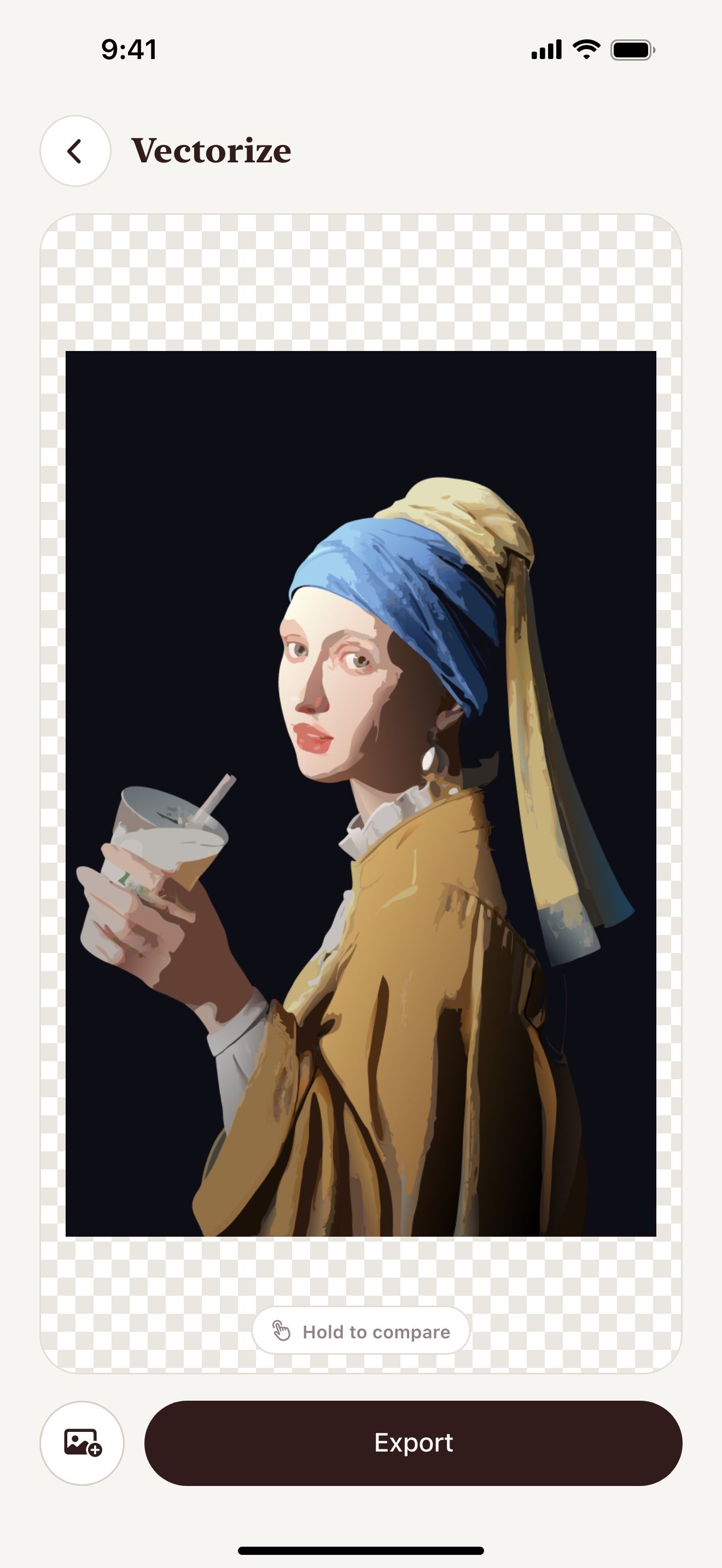
- Tap Trace for one color or Image to vector for color.
- Pick the image.
- Tap Export and choose SVG.
- Upload the SVG to your cutting or engraving app.
What you get
Clean letter edges
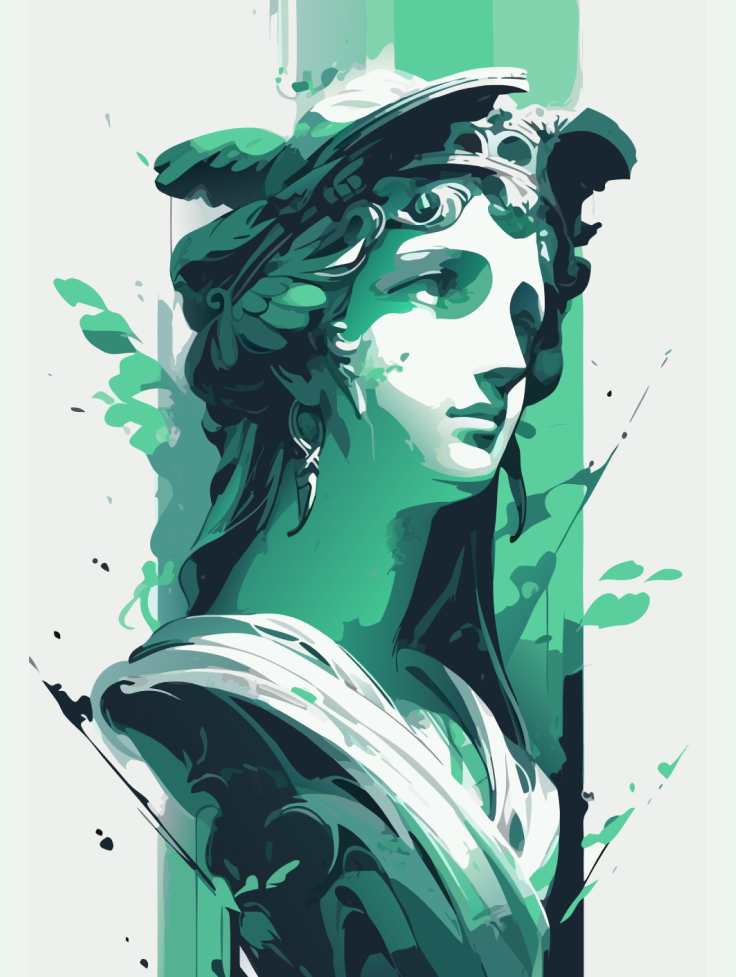
The SVG turns rough pixel edges into smooth curves.
One color or full color
Trace makes one color. Image to vector keeps several colors.
Any size
Use the same file on a mug, a sign or a wedding invitation.
Hand-drawn monograms
Photograph a monogram that you drew. The app turns it into a vector.
Tips for a clean result
- Draw the monogram with a thick black pen on white paper.
- Photograph the drawing in daylight without shadows.
- Use Trace for one-color cut files.
Questions and answers
Does the app design monograms?
No. The app converts a monogram image into an SVG. Design or draw the monogram first.
Can I use it for wedding signs?
Yes. The SVG stays sharp at any size.
Which tool should I use?
Use Trace for one-color cuts. Use Image to vector for designs with color.
Related pages
The tool for this task


For iPhone and iPad
Turn your monogram into an SVG
Scan with your iPhone or iPad camera to open the App Store.