
For iPhone and iPad
Trace a photo into a silhouette
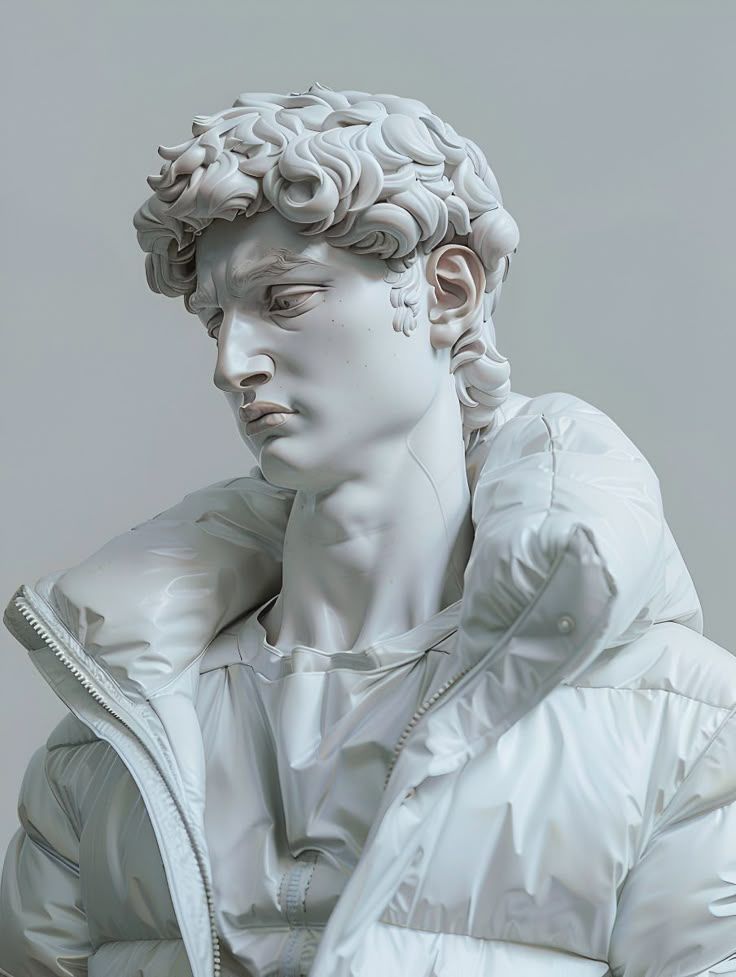
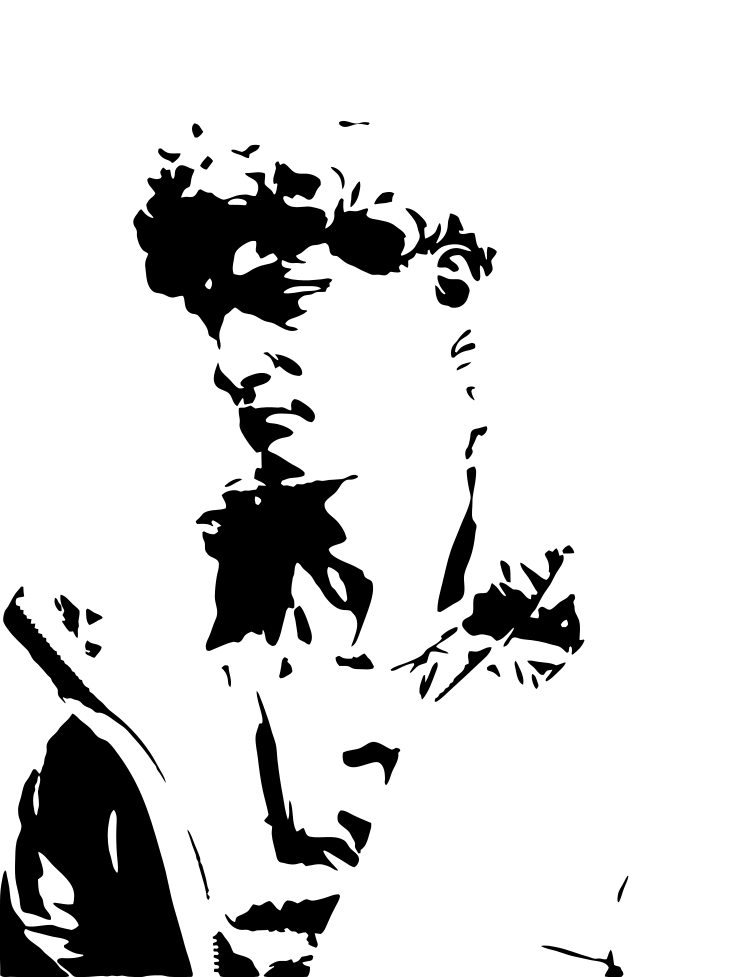
Trace turns any photo into a one-color silhouette. The tool runs on your iPhone or iPad and costs nothing.
Scan with your iPhone or iPad camera to open the App Store.
Step by step
How to make a stencil from a photo on iPhone and iPad
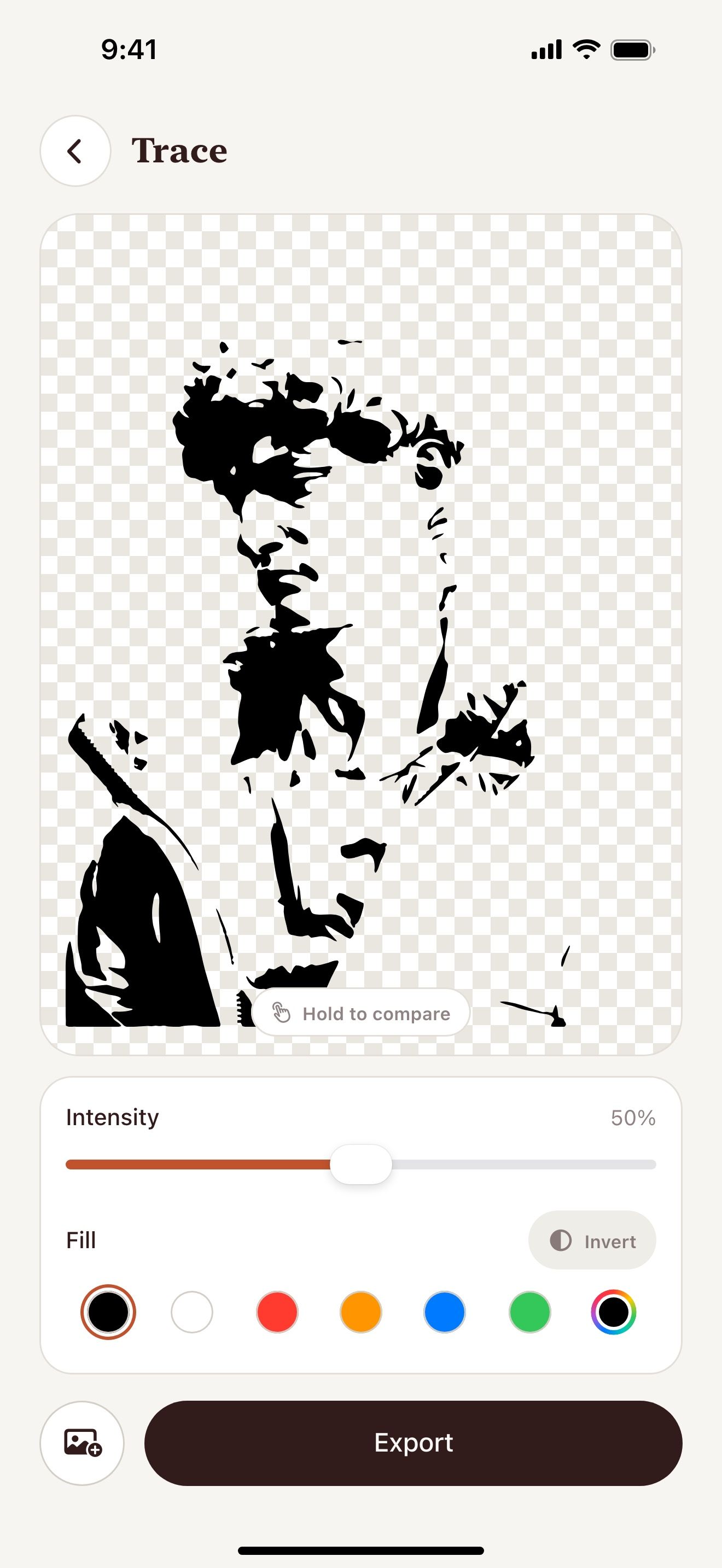
- Open Vectorize Image and tap Trace.
- Pick a photo with a clear subject.
- Move the Intensity slider to set the detail.
- Tap Invert to swap the filled and empty areas.
- Choose the fill color.
- Tap Export and save the SVG or PNG.
What you get
Free with no limit
You can trace as many photos as you want.
Works offline
The tool runs on your device. Your photo stays on your iPhone or iPad.
Live preview
The silhouette updates while you move the slider.
One color
One-color shapes cut cleanly on Cricut and Silhouette machines.
Tips for a clean result
- Use a photo with a plain background and strong contrast.
- Lower the intensity for a bold stencil with fewer details.
- Raise the intensity to keep more details.
- Remove the background first to get a clean outline.
People use it for
- Stencils
- Cricut
- Silhouette Cameo
- Vinyl decals
- Laser engraving
- Line art
- T-shirt print
Questions and answers
Is Trace free?
Yes. Trace is free with no limit.
Does Trace work offline?
Yes. Trace runs on your iPhone or iPad. It needs no internet connection.
Can I cut the silhouette on a Cricut machine?
Yes. Save the SVG to Files. Then upload it in Cricut Design Space as a cut image.
How is Trace different from Image to vector?
Trace makes a one-color silhouette on your device. Image to vector uses AI and keeps the colors.
Related pages
Other tools



For iPhone and iPad
Make your first stencil
Scan with your iPhone or iPad camera to open the App Store.