
For iPhone and iPad
Convert PNG to SVG
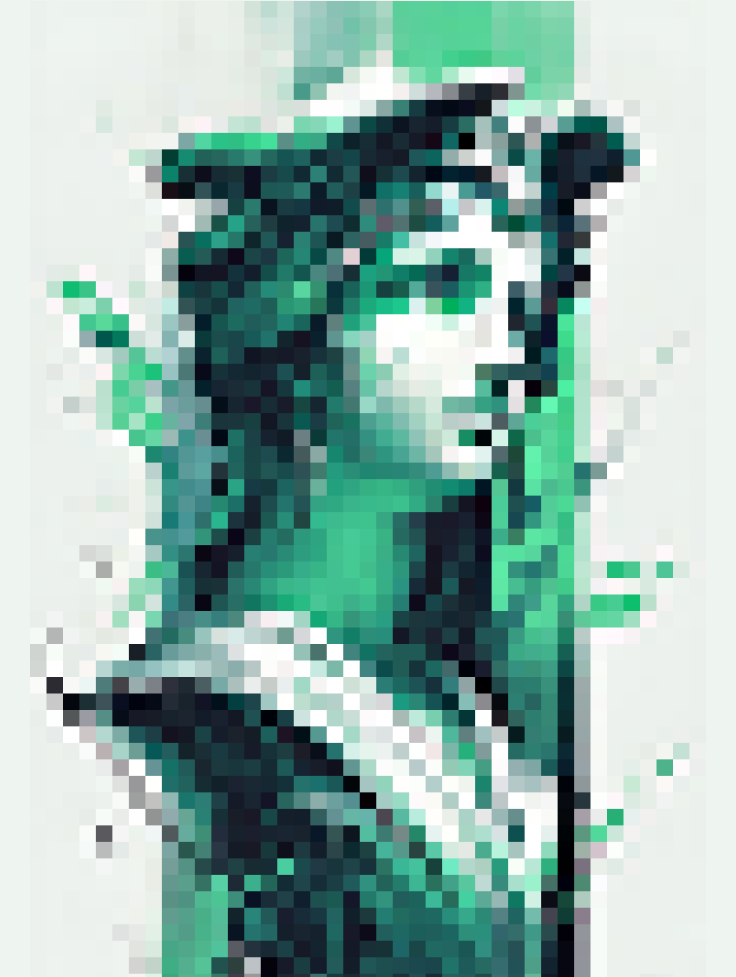
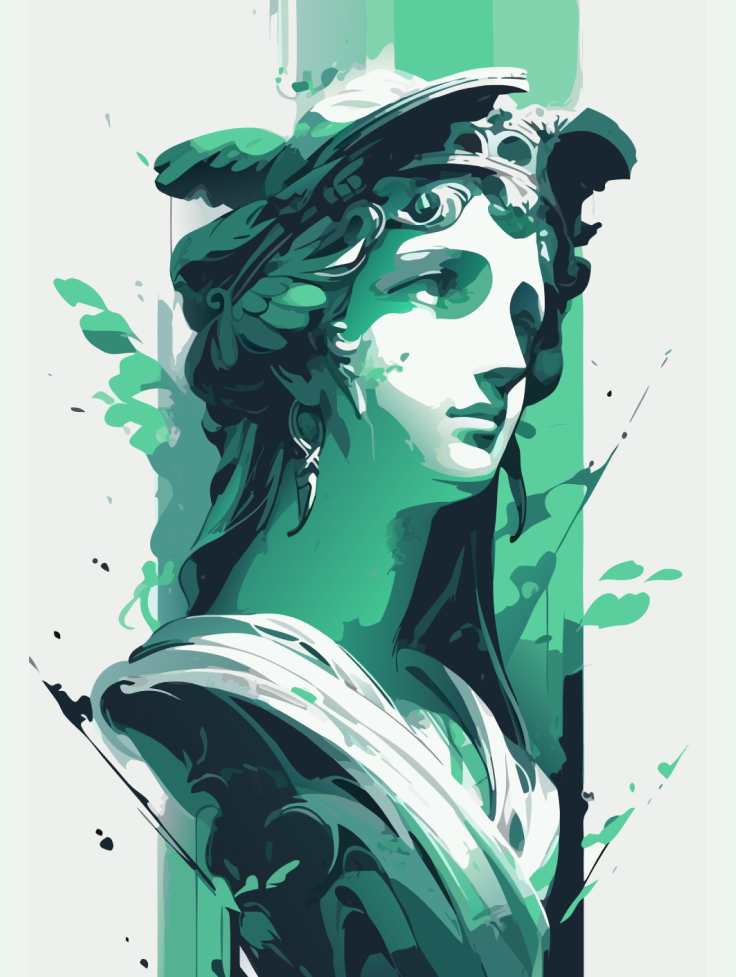
A PNG is made of pixels. Vectorize Image redraws it as an SVG with clean shapes.
Scan with your iPhone or iPad camera to open the App Store.
Step by step
How to convert PNG to SVG on iPhone and iPad
- Save the PNG to your Photos library.
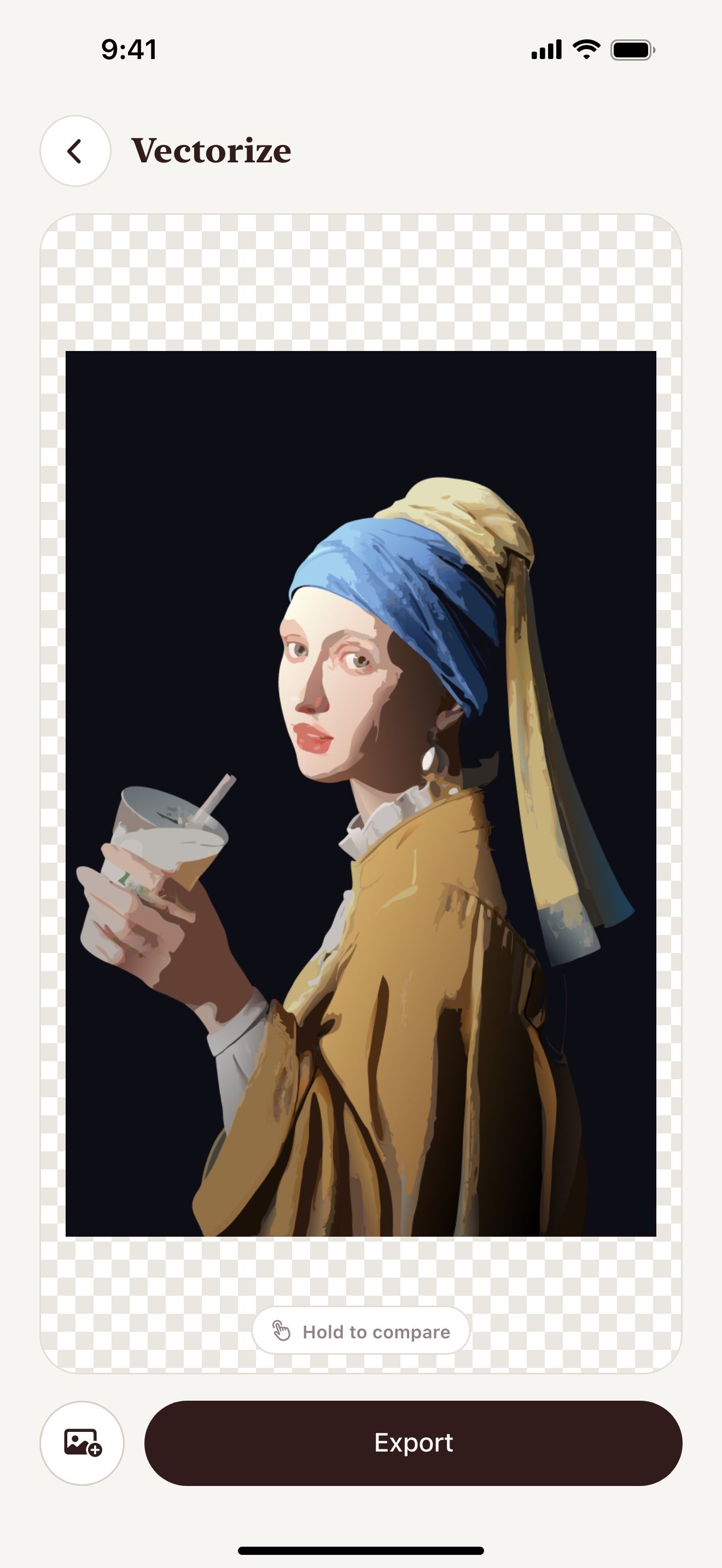
- Open Vectorize Image and tap Image to vector.
- Pick the PNG.
- Wait a few seconds. AI redraws the image.
- Tap Export and choose SVG.
- Save the SVG to Files.
What you get
Color or one color
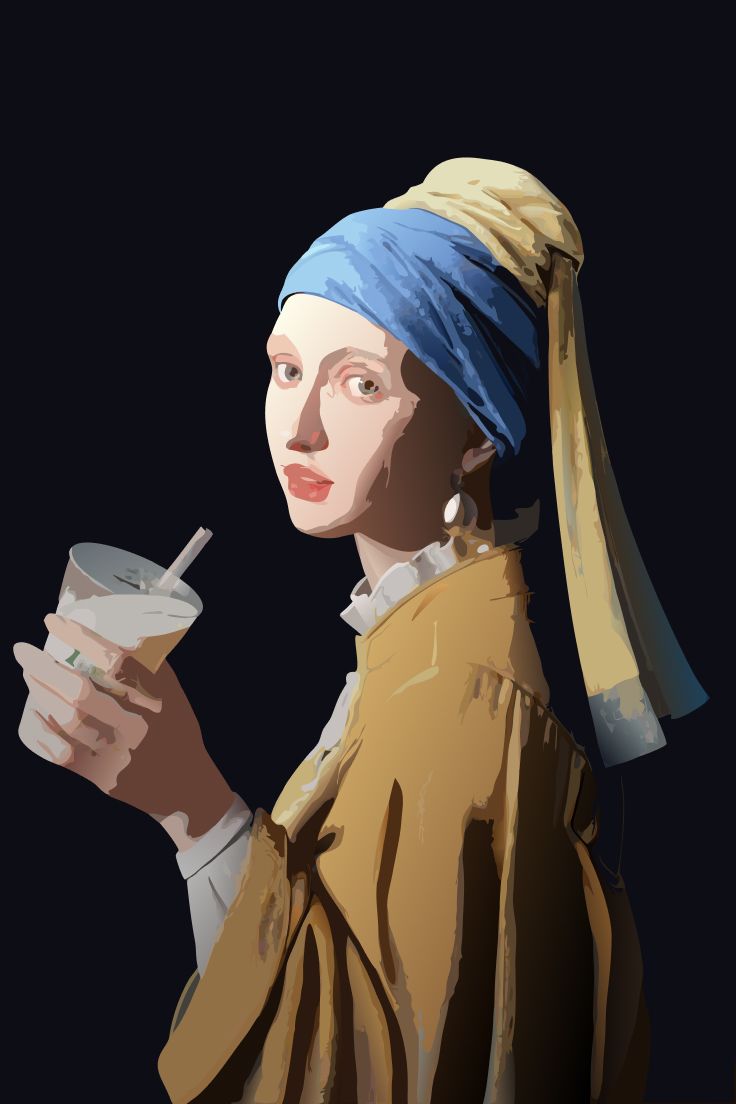
Image to vector keeps the colors. Trace makes a one-color SVG for free.
Sharp at any size
The SVG has no pixels. You can scale it without blur.
Back to PNG at 4×
Need a bigger PNG? Export the vector as PNG up to 4096 px.
Paths you can edit
Each shape in the SVG is a path. Edit it in Illustrator, Inkscape or Figma.
Tips for a clean result
- Use the largest PNG you have.
- Logos and icons with flat colors give the cleanest SVG.
- Use Trace if you need a one-color cut file.
Questions and answers
Can I convert a PNG from the Files app?
Save the PNG to Photos first. Then pick it in Vectorize Image.
Does the SVG keep the colors?
Image to vector keeps the main colors as flat shapes. Trace uses one color that you choose.
Related pages
The tool for this task

For iPhone and iPad
Convert your PNG to SVG
Scan with your iPhone or iPad camera to open the App Store.