
For iPhone and iPad
Files for Silhouette Cameo
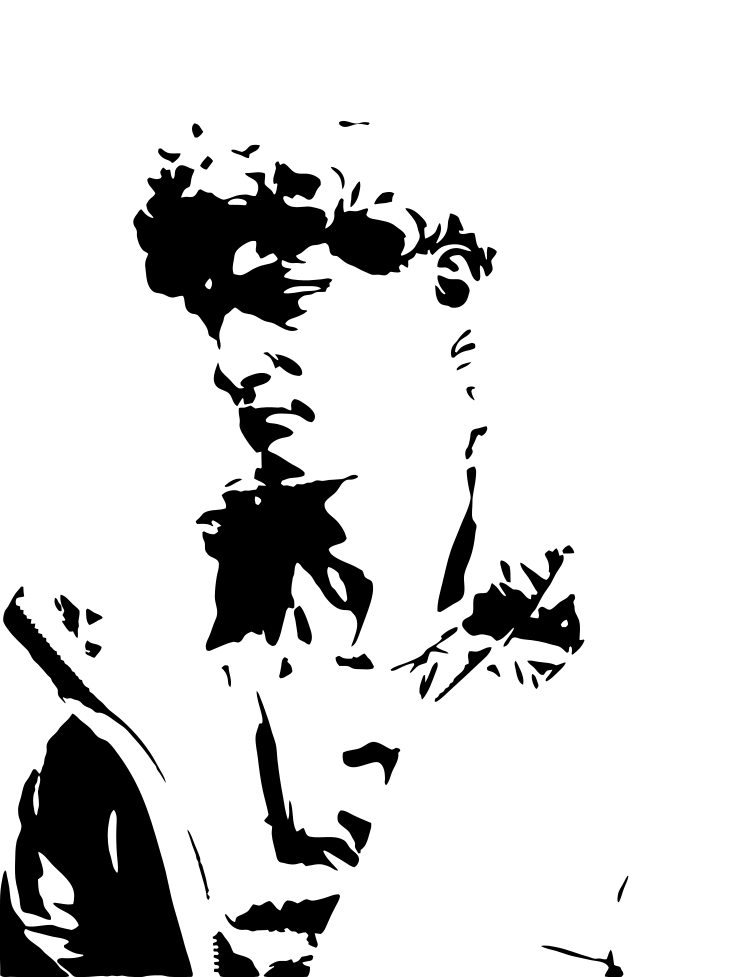
Vectorize Image turns a photo into a clean one-color design. Silhouette Studio opens it for cutting.
Scan with your iPhone or iPad camera to open the App Store.

Step by step
How to make a Silhouette Cameo file on iPhone and iPad
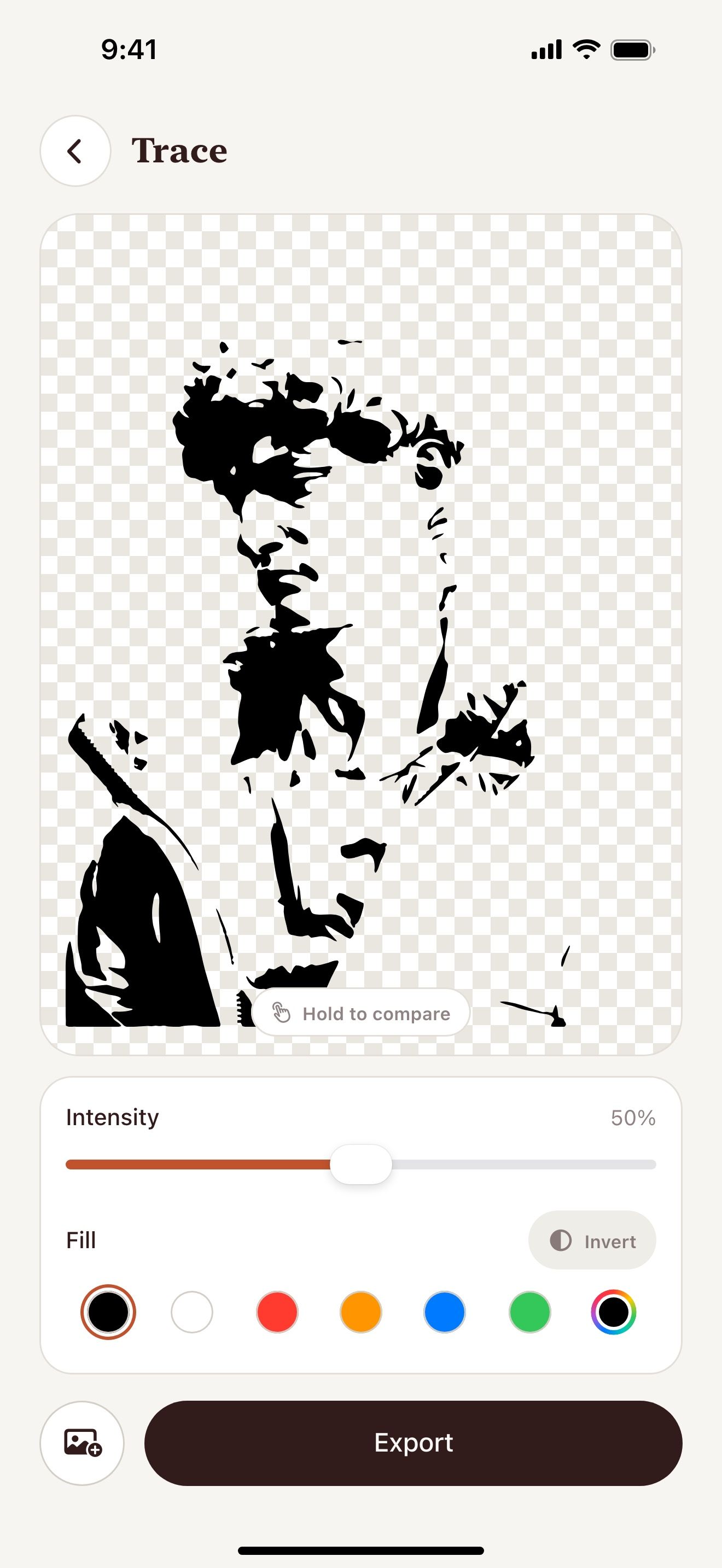
- Open Vectorize Image and tap Trace.
- Pick a photo and set the intensity.
- Tap Export and choose SVG or PNG 4×.
- Send the file to your computer with AirDrop or Files.
- Open the file in Silhouette Studio.
What you get
SVG for Designer Edition
Silhouette Studio Designer Edition and higher open SVG files.
PNG for Basic Edition
Basic Edition does not open SVG. Open the PNG and use the Trace panel in Silhouette Studio.
Clean one-color art
A one-color design traces and cuts without stray pieces.
Free with no limit
You can trace as many photos as you want.
Tips for a clean result
- Export a 4× PNG for a clean trace in Silhouette Studio.
- Choose a black fill for the best contrast.
- Lower the intensity to avoid tiny pieces.
Questions and answers
Why can't Silhouette Studio open my SVG?
SVG import needs Designer Edition or higher. In Basic Edition, use the PNG instead.
Does the app export DXF?
No. The app exports SVG and PNG.
Do I need a computer?
Silhouette Studio runs on a computer. Make the file on iPhone or iPad, then send it with AirDrop.
Related pages
The tool for this task

For iPhone and iPad
Make your first Silhouette file
Scan with your iPhone or iPad camera to open the App Store.