
For iPhone and iPad
Remove the background from a photo
Remove background cuts out the subject with AI. The background becomes transparent.
Scan with your iPhone or iPad camera to open the App Store.


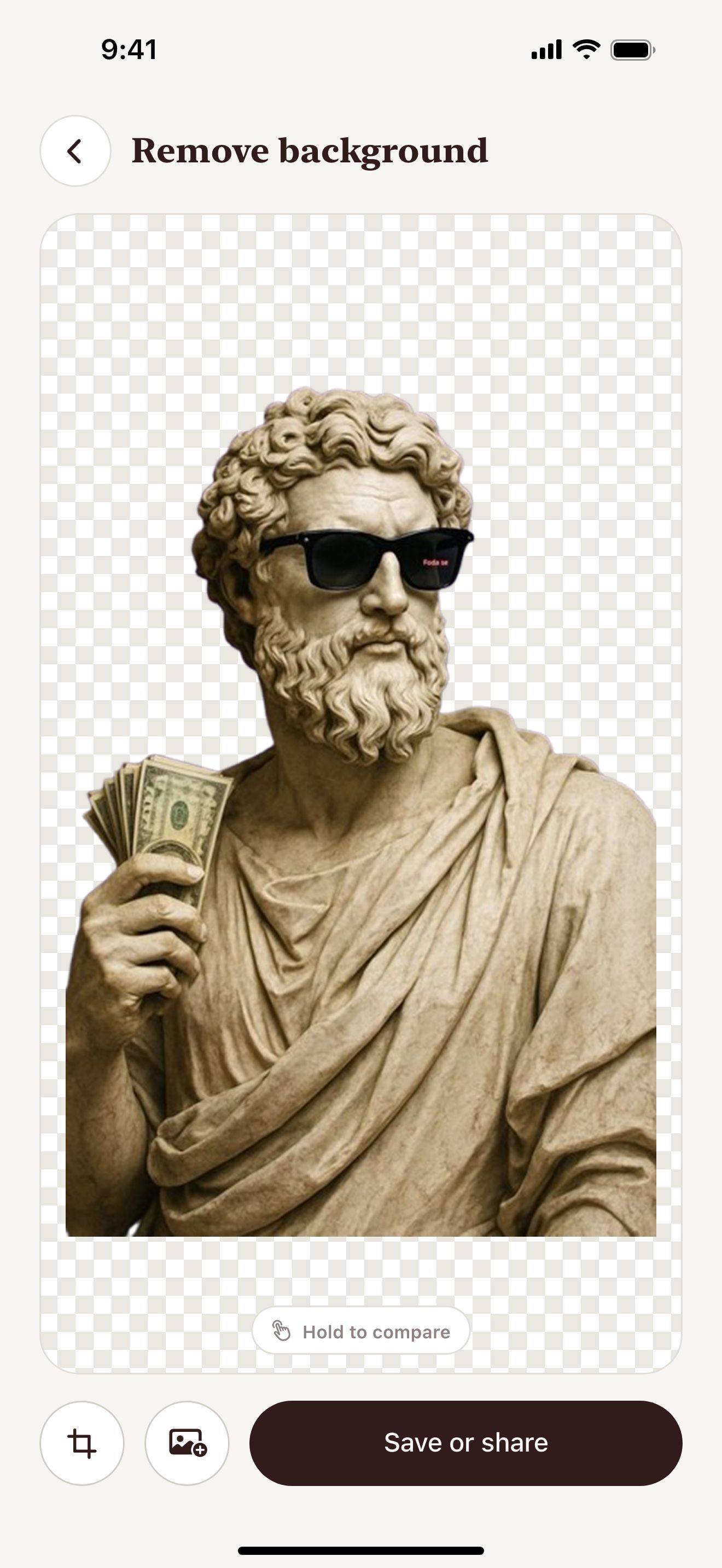
Step by step
How to remove a photo background on iPhone and iPad
- Open Vectorize Image and tap Remove background.
- Pick a photo or take a new one.
- Wait a few seconds. AI cuts out the subject.
- Touch and hold the eye button to compare the result with the original.
- Tap Save or share and save the PNG.
What you get
Clean edges
AI finds the subject and keeps fine edges.
Transparent PNG
The app saves the cutout as PNG with a transparent background.
Next tool in one tap
Send the cutout to Image to vector or Trace. The app keeps your last result ready.
Drag and drop
Touch and hold the cutout. Then drop it into another app.
Tips for a clean result
- Use a photo where the subject is in focus.
- Leave some space around the subject.
- Send the cutout to Image to vector to get an SVG sticker.
People use it for
- Stickers
- Product photos
- Profile pictures
- Collages
- Online shop listings
- T-shirt print
Questions and answers
What format is the result?
The app saves the cutout as PNG with a transparent background.
Does Remove background work on iPad?
Yes. On iPad you can drag the cutout straight into another app.
Can I turn the cutout into an SVG?
Yes. Tap the next tool after the cutout is ready. Image to vector or Trace opens with your cutout.
Related pages
Other tools


For iPhone and iPad
Remove your first background
Scan with your iPhone or iPad camera to open the App Store.