SVG vs PNG: which format to use
SVG and PNG both keep a transparent background. They store the image in very different ways. This guide explains when each format fits.
The short answer
- Use SVG for logos, cut files, icons and anything you scale.
- Use PNG for photos, cutouts and images with fine textures.
How PNG works
A PNG stores a grid of pixels. Each pixel has a color.
A PNG looks sharp at its own size. When you scale it up, the pixels grow. The edges turn blurry or blocky.
A PNG can keep a transparent background. That makes it good for cutouts and stickers.
How SVG works
An SVG stores shapes. Each shape has a path, a fill and a color.
The screen draws the shapes again at every size. So an SVG stays sharp on a phone and on a billboard.
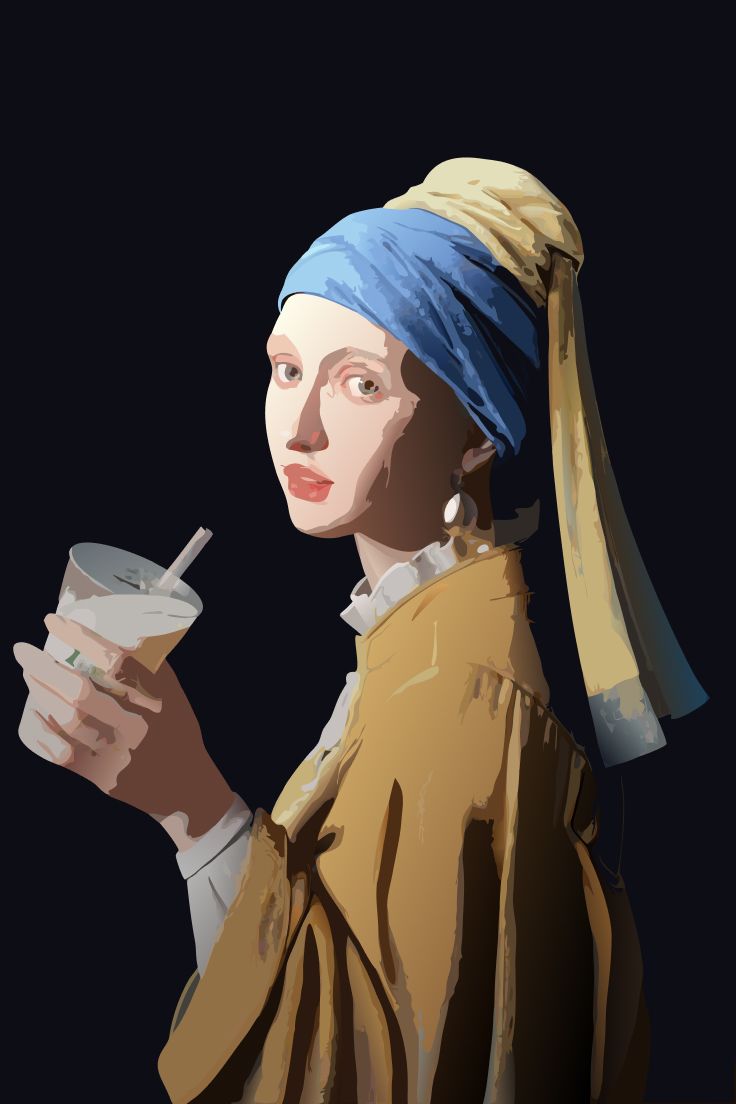
An SVG works best with flat colors. A photo with millions of tones turns into many shapes.
Side by side
| SVG | PNG | |
|---|---|---|
| Stores | Shapes | Pixels |
| Scales without blur | Yes | No |
| Transparent background | Yes | Yes |
| Best for | Logos, cut files, icons | Photos, cutouts, textures |
| Cutting machines | Cut paths | Needs a trace first |
| Saves to Photos | No, use Files | Yes |
Which format for which task
- Cricut and Silhouette cuts: SVG.
- Print Then Cut stickers: PNG with a transparent background.
- Laser cutting and scoring: SVG.
- Laser engraving of filled areas: PNG.
- Logo for a printer: SVG.
- Image for a website: PNG, or SVG for icons and logos.
How to convert on iPhone and iPad
PNG to SVG. Open Vectorize Image and tap Image to vector. AI redraws the PNG in flat color shapes. For a one-color SVG, use Trace instead.
SVG to PNG. After Image to vector or Trace, tap Export and choose PNG. The app renders the PNG from the vector at 1×, 2×, 3× or 4×. The largest side reaches 4096 px.