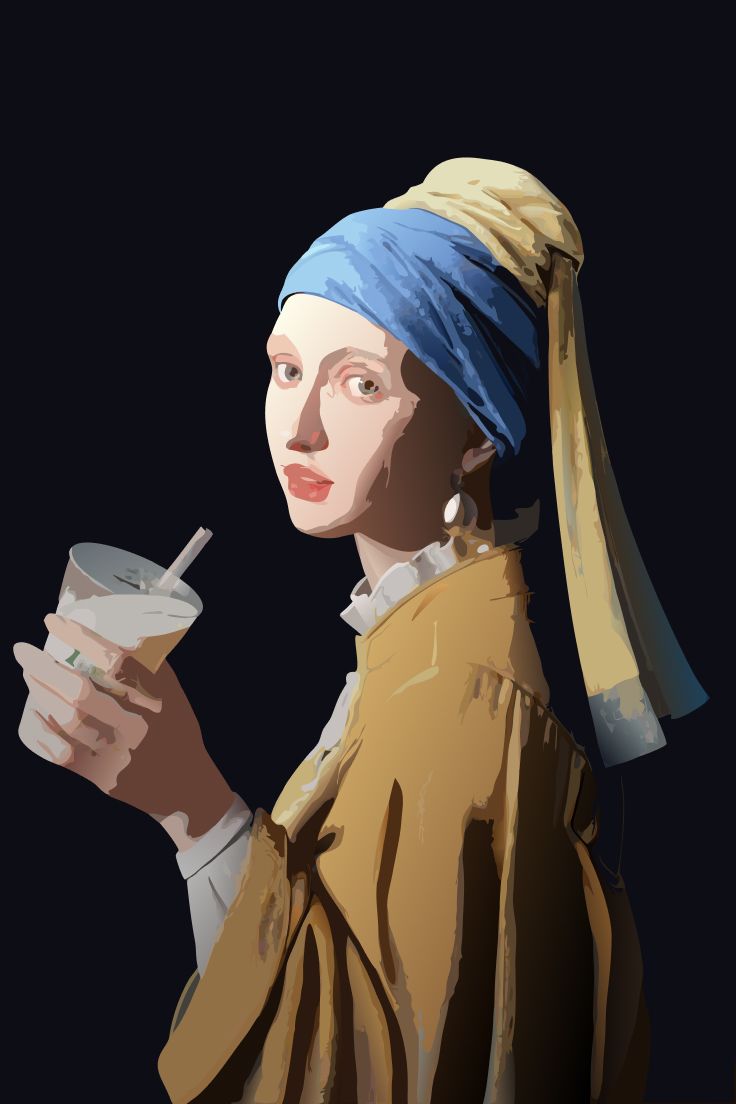
How to vectorize a logo on iPhone and iPad
A blurry logo looks bad on print. This guide shows how to get a sharp SVG from any logo image.
When you need this
A printer asks for a vector logo. You only have a small PNG from a website. Or you have a photo of a sign.
A small image turns blurry when you scale it up. A vector stays sharp at any size. Vectorize Image redraws the logo as a vector.
Step 1. Get the best image of the logo
The result depends on the source. So start with the best image you can find.
- Take a screenshot of the logo at the largest zoom.
- Or take a straight photo of a printed logo in daylight.
- Crop the image to the logo in the Photos app.
Step 2. Vectorize the image
Open Vectorize Image and tap Image to vector. Pick the image.
AI redraws the logo in flat color shapes. This takes a few seconds.
Touch and hold the eye button to compare the result with the original.
Step 3. Export the SVG
Tap Export and choose SVG. Save the file to Files or send it to your designer.
You can also export a PNG at 1×, 2×, 3× or 4×. The app renders the PNG from the vector, so even a 4× PNG stays sharp.
Check these details
AI gives a clean base. Some details may still need a fix in an editor:
- Small text. Very small letters can merge. Retype them in Illustrator, Figma or Inkscape.
- Thin lines. Very thin lines can break. Make them thicker in the editor.
- Exact colors. Compare the colors with the brand guide. Replace them in the editor if needed.
Use only logos you may use
Vectorize only your own logo or a logo you have the right to use.